Resources
Your Square menu
is your NomStreet menu.
We read your catalog straight from Square — no separate menu to build or maintain. A few minutes of cleanup in Square now means a sharper storefront on NomStreet, automatically.
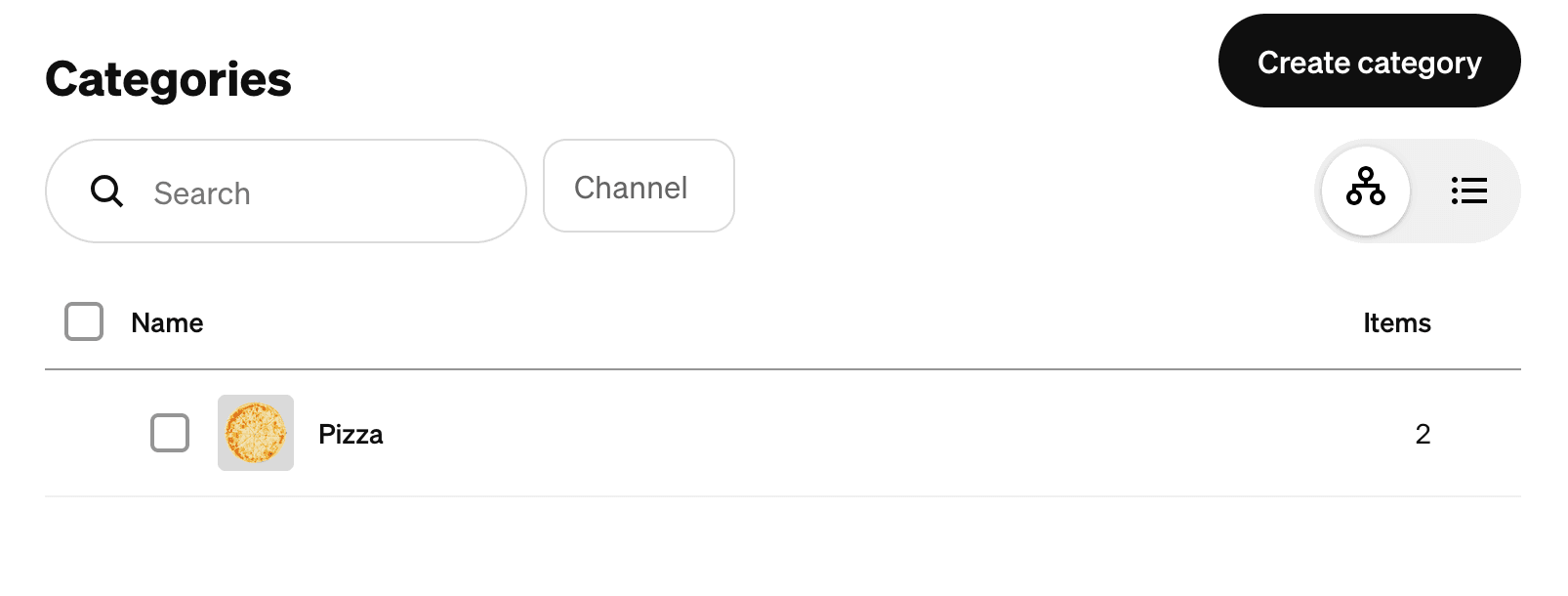
Items must be under a top-level category.
NomStreet only shows items that belong to a category — items sitting outside any category won't appear in your storefront at all. Create top-level categories in Square (e.g. "Tacos", "Drinks") and make sure every item is assigned to one.
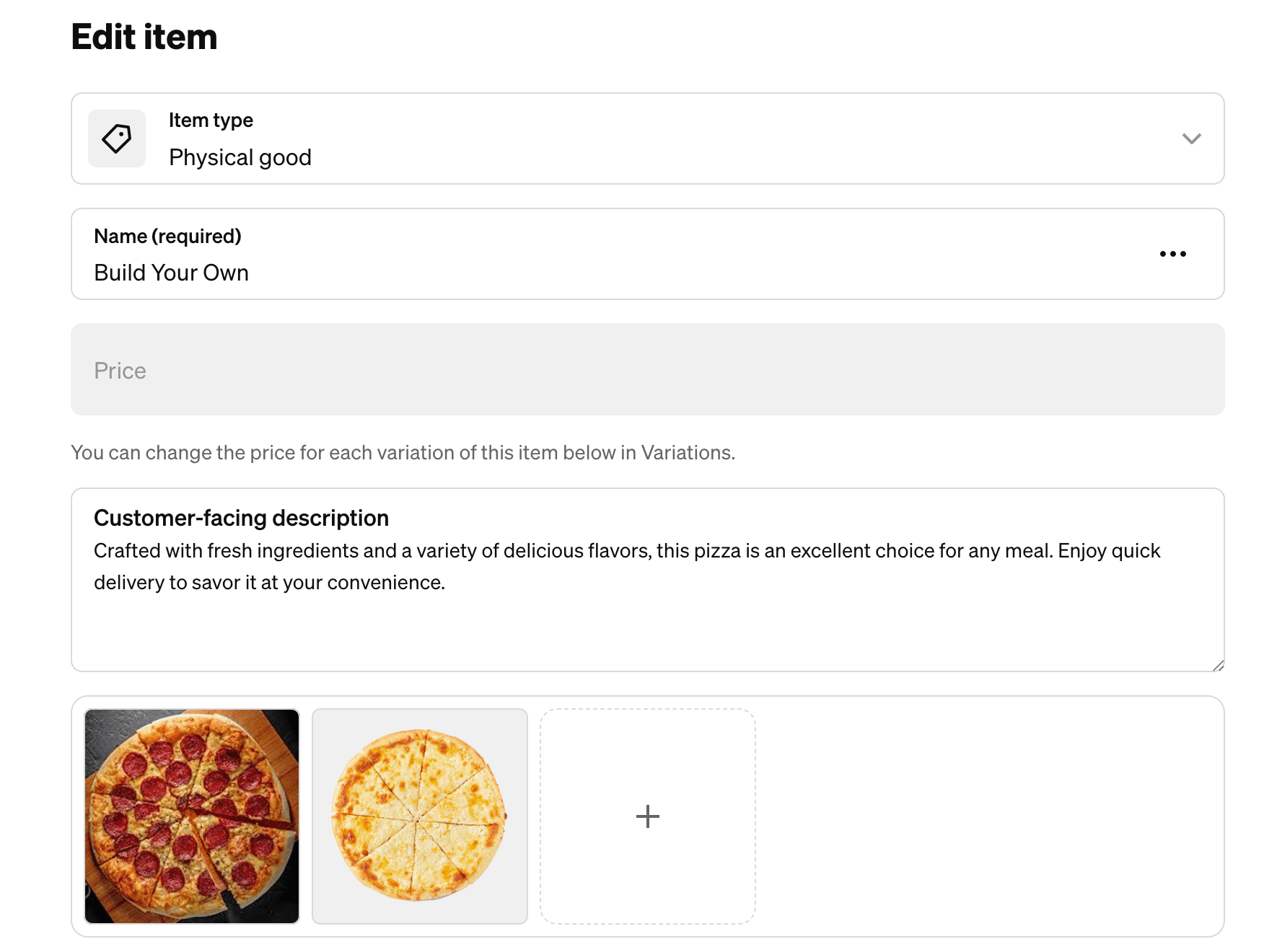
Add an image for every item.
Items with photos stand out and convert better. Adding at least one image per item is the single highest-impact thing you can do for your storefront.
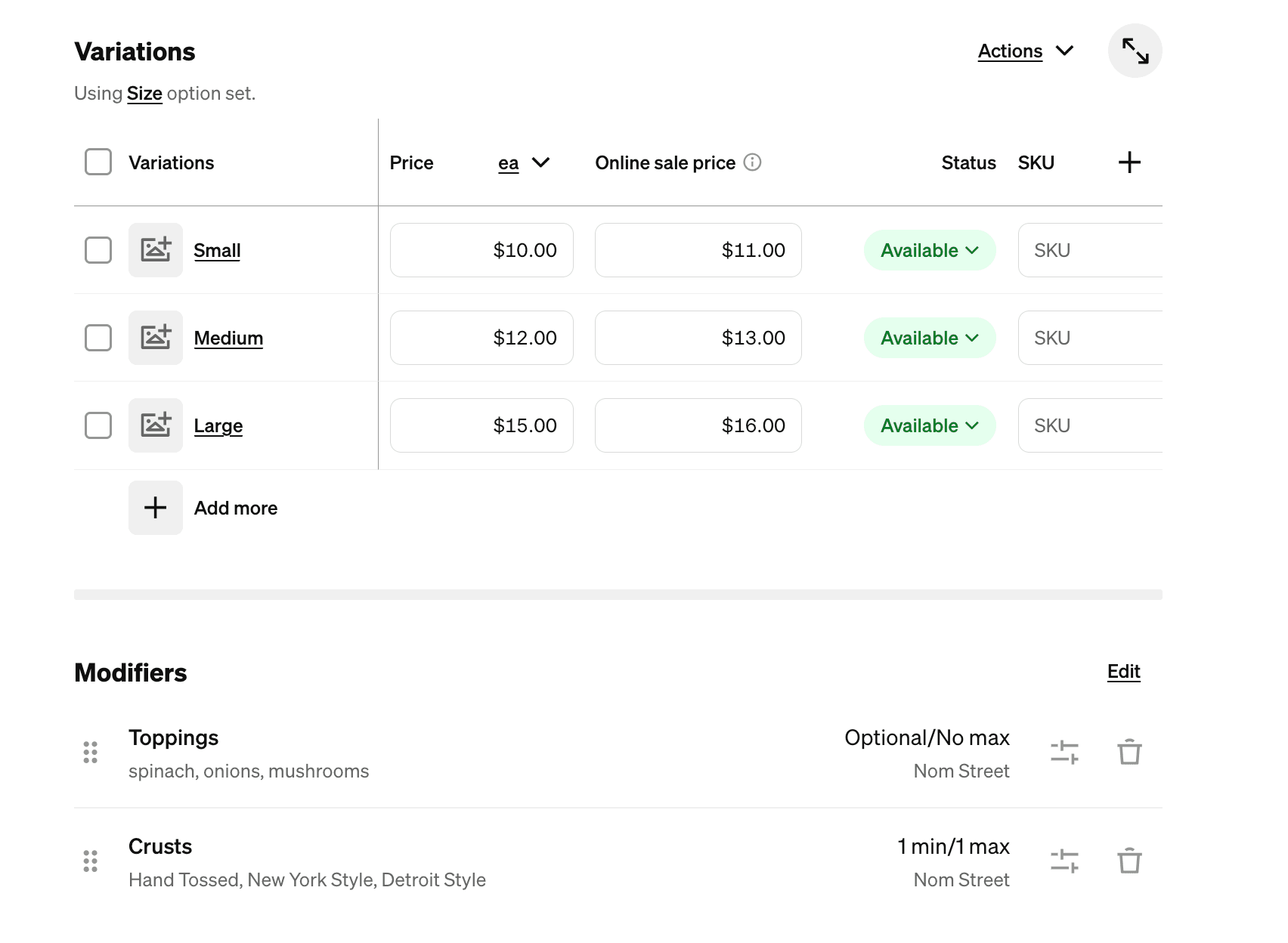
Set up sizes and add-ons.
Configure sizes and add-ons as Item Options or Modifiers in Square — they'll show up automatically as choices when customers order through NomStreet.
Set your tax rate and connect the right location.
Assign the correct tax rate to each item in Square. Also make sure you connect the Square location your kitchen actually runs — only items enabled for that location will appear in your storefront.
Heads up
Square's inventory counts and stock levels aren't used by NomStreet yet — every item in your connected catalog shows as orderable regardless of stock. If you temporarily run out of something, remove it from the connected location in Square until you're restocked.
Learn more from Square
For click-by-click steps in the Square dashboard, Square's own support articles have you covered.
- Create and edit items
- Create and edit item categories
- Create and edit modifiers
- Create and edit item options and variations
Questions? Email nomstreethalal@gmail.com.